Changing your router? Unlink your devices first
Changing your router? Unlink your MySmartWindow devices from the app first so your blinds and windows don't go offline. Here's how, step by step.
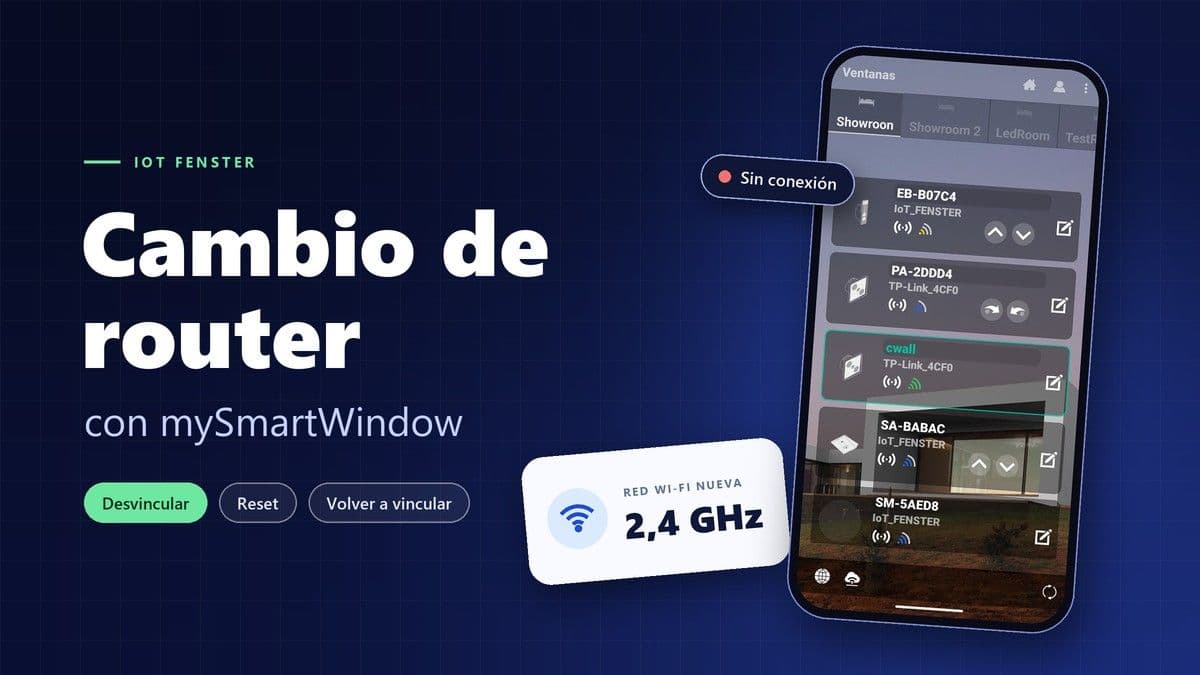
If you're changing your router — switching provider, replacing an ageing box or moving house — there's one job worth doing before you unplug the old one: unlink your MySmartWindow devices from the app. It takes a couple of minutes per device, and it saves you from finding your blinds and windows offline on your phone once the new router is in.
Here's why it happens, how to unlink your devices before the change, and what to do if you've already swapped routers without doing it.
Why changing your router takes your devices offline
Each device remembers the Wi-Fi network it was paired with. A new router means a new network, and the device doesn't move across by itself: it has to be paired again. Until then, the Ventanas (Windows) section of the app shows your devices as offline and they don't respond.
It affects every device that connects over Wi-Fi: CONNECT-1, CONNECT-2, CONNECT EVO, C-PULSAR, C-WALL and Konect Elite.
The fix is simple: unlink them and pair them again with the new network. What changes, and by a lot, is how easy it is depending on the order you do things in.
Before changing your router: unlink your devices
The clean way to do it is a software reset from the app. It unlinks the device from the app and returns it to factory mode, ready to be paired again. Do it while the old router is still switched on: the device needs a connection to complete the reset.
These are the steps in the classic version of the app. On-screen labels are given as they appear in the Spanish interface:
- From the main menu, open Ventanas (Windows).
- Open the device's edit screen with the pencil icon on the right of its card.
- Tap the reset icon, the one with the circular arrows.
- The app asks whether you're sure you want to reset the window. Confirm with Sí.
- Wait without touching anything. One notification tells you the device has been removed and another that the reset has finished.
- Go back to Ventanas and check that the device is no longer on the list.
Repeat the process for every device in the home. The procedure is the same for all Connect models, and the Reset Software manual walks through it screen by screen.
What to have to hand before you start
- The name and password of the new Wi-Fi network.
- A 2.4 GHz network: 5 GHz networks don't work with the devices.
- Good Wi-Fi coverage where each device is installed.
With the new router: pair them again
Once the new router is up and running, pair each device just as you did the first time, but choosing the new network:
- From the main menu of the MySmartWindow app, tap the wizard button and then Comenzar (Start).
- Select the new router's Wi-Fi network. If it isn't on the list, tap Configurar otra Wi-Fi (Set up another Wi-Fi) and add it.
- Type the network password. The app asks for it twice: check it's correct, including upper and lower case.
- Follow the wizard to the end.
When it finishes, the app shows the device as connected and it appears under Ventanas again. If you have several, work through them one at a time until the whole home is done.
Already changed your router without unlinking?
If the old router has gone, the software reset can't be completed, because the device has no communication with the app. It can still be sorted, but it takes one extra step: the reset has to be done on the device itself.
- Remove it from the app. Under Ventanas, open the device's edit screen and tap reset. The app warns that it can't be done; that's expected. Open the edit screen again, tap the white X and confirm with Aceptar (Accept).
- Reset the device itself. Each model has its own button sequence and timings. You'll know it's ready when its light blinks slowly.
- Pair it again using the wizard and the new Wi-Fi network, exactly as in the previous section.
All three steps are needed for every device that shows as offline. The full sequence, with app screenshots and the reset table for each model, is in the router change quick guide: four pages to keep open on your phone while you do it. The PDF is in Spanish.
One warning if you have a CONNECT EVO: a reset done on the device itself also erases its schedules.
Changing your router, in short
- Before the change: software reset from the app, device by device, with the old router still on.
- After the change: pairing wizard with the new 2.4 GHz network.
- If you didn't unlink in time: remove from the app, reset on the device and pair again, following the quick guide.
Frequently asked questions
What happens if I change my router without unlinking my devices?
They show as offline in the app and don't respond. To get them back you have to remove them from the app, reset the device itself and pair it again with the new Wi-Fi network.
Do I have to unlink every device?
Yes, every one that connects over Wi-Fi: CONNECT-1, CONNECT-2, CONNECT EVO, C-PULSAR, C-WALL and Konect Elite. The software reset is done one device at a time.
Can I use the new router's 5 GHz network?
No. The network has to be 2.4 GHz; 5 GHz networks don't work with the devices.
How do I know the software reset has finished?
The app sends one notification when the device is removed and another when the reset is complete. After that, the device no longer appears under Ventanas.
What if it won't connect after the change?
Check that the network is 2.4 GHz, that the password is the new router's and that there's good coverage where the device is. Make sure its light is still blinking as the guide describes and try pairing again; if it isn't, repeat the reset first.
Got a router change coming up?
Spend a few minutes unlinking your devices before you switch the old router off, and the change comes down to running the wizard again. If you've already changed it, download the quick guide and follow the three steps. And if something doesn't go to plan, get in touch with our team through the support page and we'll help.