mySmartWindow app manual: how it works, step by step
The mySmartWindow app manual is now available: 22 pages with screenshots to link devices, schedule blinds and set up alerts on your Android phone.
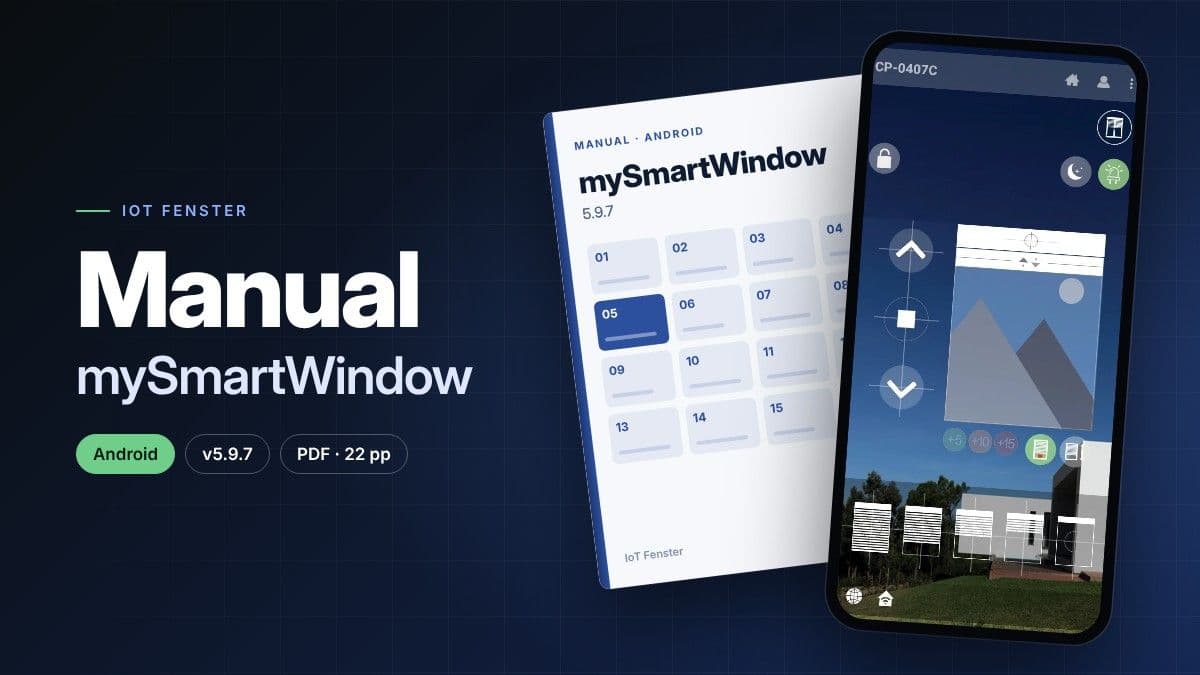
The mySmartWindow app manual from IoT Fenster is now available: a screen-by-screen guide to how the app works, the smart window app you use to control your connected blinds and windows. It covers the classic interface for Android (version 5.9.7) in 22 pages with screenshots, updated on 27 October 2026. You will find it in the resource hub, ready to read or download as a PDF.
mySmartWindow app manual: what it is for
The manual brings everything you need to find your way around the app into a single document. Each chapter shows a screen as you will see it and explains what every button does, with numbers on the image pointing to each element.
The screenshots are rebuilt with the app's own icons, backgrounds and texts, and the names of homes, networks and codes are samples. The app is free to download from the App Store and Google Play; if you have not met it yet, this is what mySmartWindow does.
How the mySmartWindow app works: the 16 chapters
Read them in order or jump to the one you need:
- Getting started: signing in, the permissions to grant (notifications, location and Bluetooth) and a tour of the main menu and its nine shortcuts.
- Your home, organised: homes, rooms and windows, and the services each device offers.
- Controlling each window: the blind (up, stop, down, quick positions and calibration), the LED, Dark Mode, gesture and push modes, the tilt-and-turn window, the opening sensor and air quality.
- Automation and notices: scheduler, groups and alerts.
- Connection and account: settings and Wi-Fi, linking devices, sharing a home, assistant integration and common problems.
How to link devices in mySmartWindow
Linking is the first step to using the app, and the manual explains it in detail. Before you start, save your home Wi-Fi network in Settings. Devices connect to 2.4 GHz networks (or dual-band routers); if your router only broadcasts on 5 GHz, the wizard warns you in the first step.
The wizard then offers four methods, and the manual tells you when each one suits:
- Bluetooth: the first option, when you have your phone next to the device.
- Multicast: fast, but less reliable. Meant for several devices near the router.
- AP-Multicast: slower, but more reliable. For when Multicast fails or you have many devices.
- AP (point-to-point): fast and reliable, for linking a single device.
Schedule blinds from your phone, group and share
Once your devices are linked, the manual shows you how to get more out of them without touching the blind.
The scheduler builds tasks from three pieces: a device, a trigger (time and days) and an action. You can raise or lower a blind, move it to a percentage you choose, or open, close and micro-ventilate a tilt-and-turn window. A switch pauses each task without deleting it.
Groups are virtual rooms: gather devices from different rooms and move them all with one tap.
To share a home, the owner generates an invitation code in Settings and the other person enters it in Associate home. A word of warning: in an associated home, Alerts, Integration, Scheduler, Groups and Messages appear dimmed.
Alerts and air quality
The app notifies you in three modes: health and well-being (air quality and CO₂), energy efficiency (temperature and humidity) and security (vibration with adjustable sensitivity, opening and intrusion).
The air quality service shows temperature, humidity, pressure, CO₂ and VOC, and tells you what to do at each level. A new sensor needs a few days to calibrate, so at first the values may not be accurate.
Smart blinds with Alexa, Google Home and IFTTT
The manual explains how to generate a validation code in Integration and enter it in the assistant's app. It connects your account with Alexa, Google Home, IFTTT or SmartThings. On Google you can also set a PIN that confirms sensitive voice commands. Explore all the compatible ecosystems.
Where to download the manual
It is in the IoT Fenster resource hub, in the App category, as a PDF. This is the Android manual; the iOS version is coming soon.
Frequently asked questions
Where can I download the mySmartWindow app manual?
In the IoT Fenster resource hub, under the App category. You can open it or download it as a PDF.
Is the mySmartWindow app free?
Yes. It is free to download from the App Store and Google Play.
Does the manual work for iPhone?
This manual is written for the classic Android interface, version 5.9.7. The iOS version is coming soon.
What if the wizard cannot find my devices?
Check your network first: devices work on 2.4 GHz and, if your router only broadcasts on 5 GHz, the wizard warns you. The common problems chapter covers this case and others, such as a blind that does not reach the position shown in the app.
Do all the features appear on every device?
No. Only the services your model has are active. For example, Hard Mode and Soft Mode exist only on Konect Elite devices.
Download the mySmartWindow app manual, open it with the app in your hand and start getting more out of your connected windows today.